

Less typing. More done.
Turn your jibber-jabber into clear, polished text, in any app, even over Remote Desktop.
Free during the preview
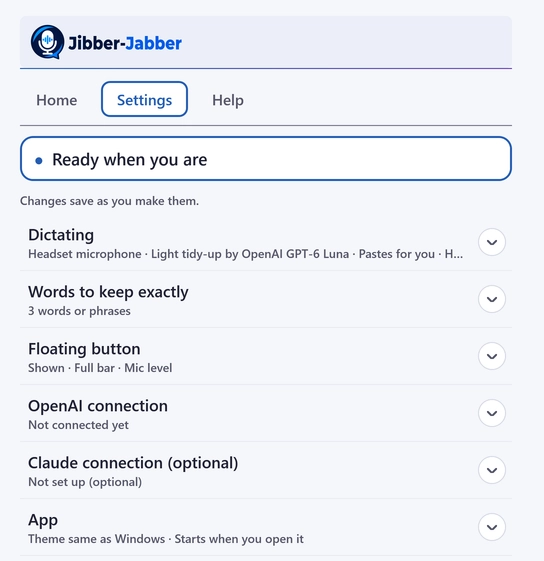
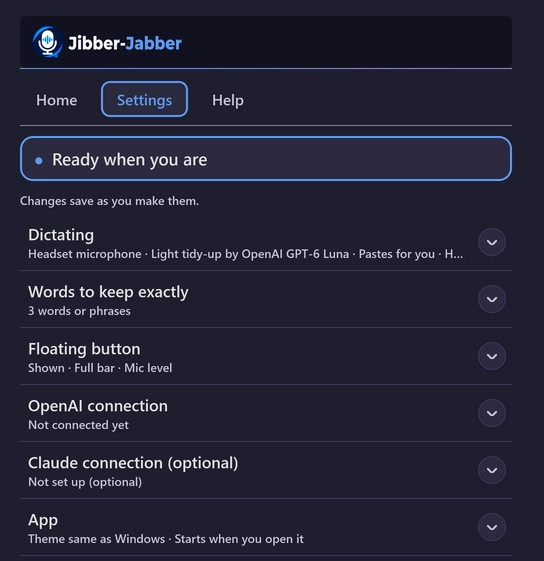
Benefits
Speak naturally
Capture your thoughts without worrying about perfect sentences or punctuation.
Write better
Use AI to turn natural speech into clear, well-punctuated writing, in Australian English.
Get more done
Spend less time at the keyboard and stay focused on the work that matters.
How it works
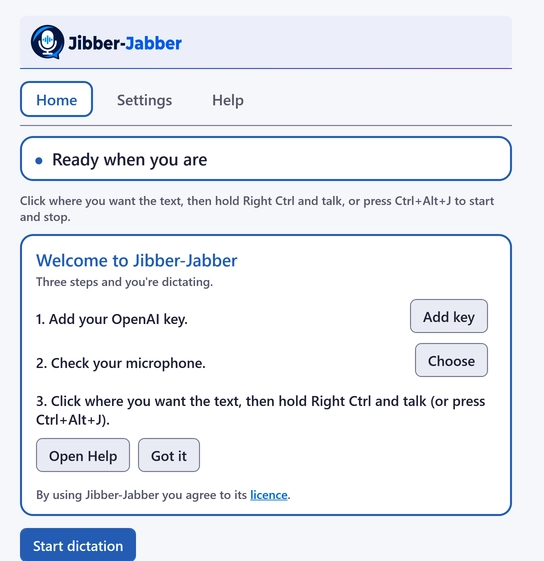
Three steps, in any app you can type in, including Remote Desktop.
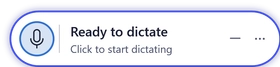
 Point at the mic and it lights up, ready to click
Click where you want the words
An email, a document, a chat or a Remote Desktop window. Then start in whichever way suits you:
Click the micorRight CtrlHold the key- Clicking the mic doesn't move your cursor, so the words still go where you clicked.
- Prefer a shortcut? Ctrl + Alt + J starts and finishes too.
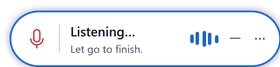
 Listening, with a live sound wave
Talk naturally
Speak the way you normally would. Ums, pauses and starting a sentence again are fine.
- Say "new paragraph", "new line" or "dot point" to lay out your text.
- Up to 10 minutes at a time. Press Esc to cancel and nothing is sent.
- You say
“um so can we move the catch up to Thursday uh maybe 2 pm instead new paragraph thanks Sam”
It typesCan we move the catch-up to Thursday, maybe 2 pm instead?
Thanks,
SamFinish
Click the mic again, or let go of Right Ctrl. Your words appear where you clicked, tidied into proper sentences with punctuation and paragraphs.
- Pick a style: As spoken, Light tidy-up or Polished.
- Switched windows meanwhile? Your words wait in a pop-up instead of landing in the wrong place.
Keep it on screen your way
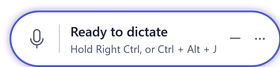
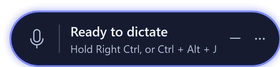
Use the full bar to see what's happening at a glance, or shrink it to a small round mic. Click either one to start and stop, and drag it anywhere. It never takes the cursor away from what you're typing in.


Your words, with no middleman
I wanted to talk instead of type, but I didn't want my voice going through another company's servers on the way.
So Jibber-Jabber has no server of its own. Your words go straight from your PC to the AI service, under your own account and its privacy terms. Jibber-Jabber keeps nothing afterwards: no recordings, no transcripts, no history.
Why Jibber-Jabber
Private by design: no middleman
There's no Jibber-Jabber account and no Jibber-Jabber server. Your words go straight to OpenAI (or Anthropic, if you choose Claude for tidy-up) using your own key, stored in Windows Credential Manager.
Works in Remote Desktop
Jibber-Jabber checks the window it started in is still the one in front before it pastes, respects clipboard policy, and puts your old clipboard back afterwards.
Australian English
Spelling, punctuation and phrasing come out in Australian English, not American.
Your words aren't lost
If a paste can't be done safely, a small pop-up holds your text so you can place it yourself or copy it. Nothing is thrown away.
Pay only for what you use
Jibber-Jabber itself is free during the preview. You pay OpenAI for the minutes you dictate. The setup guide shows how to set a spending limit.
Safe in command windows
In Command Prompt, PowerShell, Windows Terminal, PuTTY and other terminals, your words go in as a single line, so nothing runs until you press Enter.
How we keep it safe →See it in action
Questions people ask
Where do my words go?
Straight from your PC to OpenAI, which turns your voice into text, then to OpenAI or Anthropic for the tidy-up, whichever you chose. They go under your own API account and that provider's API terms. There's no Jibber-Jabber server in between, so we never see them.
Why does it use my own API key?
So your words go to the AI service under your own account, with no middleman. It also means you pay the provider directly, and only for what you use.
Do I need an account?
No. There's no Jibber-Jabber account. You only need your own OpenAI API key (and an Anthropic key if you choose Claude for tidy-up).
Does it really work in Remote Desktop?
Yes, that's the problem it was built to solve. It pastes into the foreground Remote Desktop session only, respects clipboard redirection policy, and shows a plain-English pop-up instead of guessing if anything is uncertain.
What does it cost?
Jibber-Jabber is free while it's in preview. You pay OpenAI for the minutes you dictate (and Anthropic, if you use Claude for tidy-up), under your own account. The setup guide shows how to set a spending limit. People who find it useful can also chip in through the Chip in button, when it's available.
Does it store my recordings or transcripts?
No. There's no history beyond a "copy last dictation" feature held in memory. No audio or dictated text is written to disk, and nothing goes anywhere except the provider you've chosen. See the privacy page for the full picture.
What do I need to run it?
Windows 11, or Windows 10 (64-bit), a microphone, and an OpenAI API key. See the setup guide for step-by-step help.
Does it work offline?
No. It needs an internet connection to reach OpenAI (and Anthropic, if you use Claude).
Is there a Mac version?
Not at the moment. Jibber-Jabber is for Windows.
Is my dictation used to train AI?
Your words go to OpenAI or Anthropic under your own API account, and their API data policies apply. See OpenAI's data controls page and Anthropic's API data retention page.
Can I use it at work?
Yes, if your organisation allows it. Check your workplace rules about sending text to AI providers, especially on client systems.
Your thoughts, in words. Without the keyboard getting in the way.
Coming soonChip in
Jibber-Jabber is free to use. If it saves you time, you're welcome to chip in towards its continued development. It's entirely optional, and the app stays the same either way.